
剪藏#剪藏#村里刚通网夫斯基
10分钟搭建你的专属云盘:Nginx+Minio实战指南
2025 年 9 月 9 日 约 1 分钟
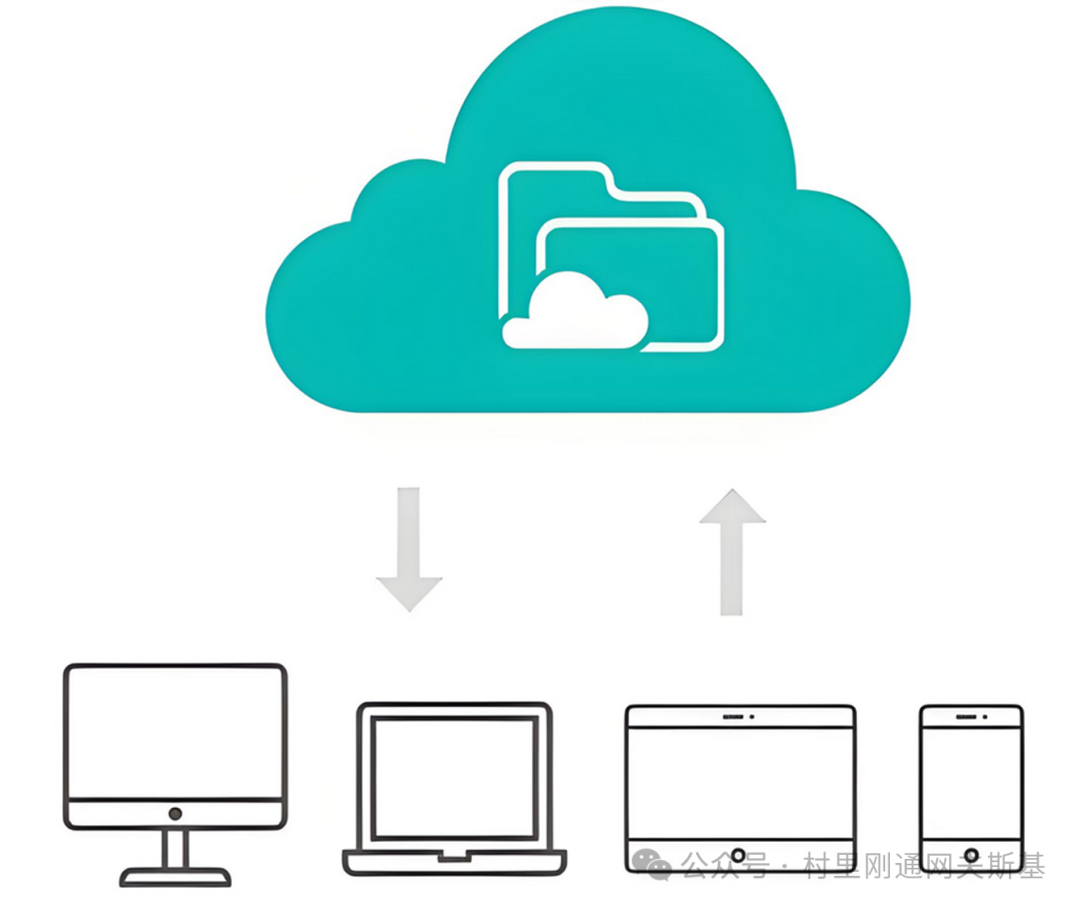
在上一篇文章中,我们已经介绍过如何使用docker快速部署MinIO文件系统,那么MinIO到底有哪些实际用途呢,本文介绍一种:使用Nginx+MinIO搭建专属云盘。

第一步:挂载云端MinIO
在上一篇文章中已经介绍过如何使用docker部署MinIO,启动MinIO,创建存储桶,这里不再赘述。
使用如下命令挂载云端MinIO:
JAVASCRIPT
s3fs test1 /data/test -o allow_other -o uid=0 -o gid=0 -o umask=022 -o mp_umask=022 -o default_acl=public-read -o use_cache=/tmp/cache -o passwd_file=/home/minio/passwd_s3fs -o url=http://192.168.254.132:9000 -o use_path_request_style第二步:Nginx主配置文件:
修改或者创建Nginx配置文件/usr/local/nginx/conf/nginx.conf:
JAVASCRIPT
user root root;
worker_processes auto;
pid /usr/local/nginx/logs/nginx.pid;

events {
    worker_connections 1024;
    use epoll;
    multi_accept on;
}

http {
    include mime.types;
    default_type application/octet-stream;

    sendfile on;
    tcp_nopush on;
    tcp_nodelay on;
    keepalive_timeout 65;
    types_hash_max_size 2048;
    server_tokens off;

    # 日志格式
    log_format main '$remote_addr - $remote_user [$time_local] "$request" '
                   '$status $body_bytes_sent "$http_referer" '
                   '"$http_user_agent" "$http_x_forwarded_for"';

    # 文件上传大小限制
    client_max_body_size 100M;
    client_body_temp_path /tmp/nginx_upload;

    # 前端资源缓存设置
    open_file_cache max=1000 inactive=20s;
    open_file_cache_valid 30s;
    open_file_cache_min_uses 2;
    open_file_cache_errors on;

    # 服务器配置
    server {
        listen 80;
        server_name localhost;
        root /usr/local/nginx/html/file-server;
        index index.html;

        # 访问日志
        access_log /usr/local/nginx/logs/file-server.access.log main;
        error_log /usr/local/nginx/logs/file-server.error.log;

        # 文件上传处理
        location /api/upload {
            # 允许跨域
            add_header 'Access-Control-Allow-Origin' '*' always;
            add_header 'Access-Control-Allow-Methods' 'GET, POST, OPTIONS' always;
            add_header 'Access-Control-Allow-Headers' 'DNT,User-Agent,X-Requested-With,If-Modified-Since,Cache-Control,Content-Type,Range' always;

            # 处理OPTIONS预检请求
            if ($request_method = 'OPTIONS') {
                add_header 'Access-Control-Allow-Origin' '*';
                add_header 'Access-Control-Allow-Methods' 'GET, POST, OPTIONS';
                add_header 'Access-Control-Allow-Headers' 'DNT,User-Agent,X-Requested-With,If-Modified-Since,Cache-Control,Content-Type,Range';
                add_header 'Access-Control-Max-Age' 1728000;
                add_header 'Content-Type' 'text/plain; charset=utf-8';
                add
JAVASCRIPT
_header 'Content-Length' 0;
                return 204;
            }

            # 文件上传配置
            client_max_body_size 100M;
            client_body_in_file_only on;
            client_body_temp_path /tmp/nginx_upload;

            # 使用PUT方法处理文件上传
            dav_methods PUT;
            create_full_put_path on;
            dav_access user:rw group:rw all:rw;

            # 文件上传成功后的处理
            if ($request_method = PUT) {
                # 移动文件到目标目录
                add_header 'Access-Control-Allow-Origin' '*' always;
                add_header 'Content-Type' 'application/json' always;
                return 201 '{"status":"success","message":"File uploaded successfully","filename":"$uri"}';
            }

            # 处理POST上传
            if ($request_method = POST) {
                add_header 'Access-Control-Allow-Origin' '*' always;
                add_header 'Content-Type' 'application/json' always;
                return 200 '{"status":"success","message":"File uploaded successfully"}';
            }
        }

        # 文件列表API
        location /api/files {
            alias /data/test;
            autoindex on;
            autoindex_exact_size off;
            autoindex_localtime on;
            autoindex_format json;

            # 允许跨域
            add_header 'Access-Control-Allow-Origin' '*' always;
            add_header 'Access-Control-Allow-Methods' 'GET, POST, OPTIONS' always;
            add_header 'Content-Type' 'application/json' always;
        }

        # 文件下载
        location /download {
            alias /data/test;

            # 强制下载
            add_header Content-Disposition 'attachment; filename="$arg_filename"';

            # 允许跨域
            add_header 'Access-Control-Allow-Origin' '*' always;
            add_header 'Access-Control-Allow-Methods' 'GET, POST, OPTIONS' always;
        }

        # 静态文件访问
        location /static/ {
            alias /data/test/;
            add_header 'Access-Control-Allow-Origin' '*' always;
JAVASCRIPT
    }

        # 文件列表页面(HTML格式)
        location /browse {
            alias /data/test;
            autoindex on;
            autoindex_exact_size off;
            autoindex_localtime on;
            autoindex_format html;

            # 添加自定义样式
            add_after_body /autoindex-style.html;
        }

        # 静态文件服务(前端界面)
        location / {
            try_files $uri $uri/ /index.html;

            # 缓存静态资源
            location ~* \.(js|css|png|jpg|jpeg|gif|ico|svg|woff|woff2|ttf|eot)$ {
                expires 1y;
                add_header Cache-Control "public, immutable";
                add_header Access-Control-Allow-Origin "*";
            }

            # HTML文件不缓存
            location ~* \.html$ {
                expires -1;
                add_header Cache-Control "no-store, no-cache, must-revalidate, proxy-revalidate, max-age=0";
            }
        }

        # 健康检查
        location /health {
            access_log off;
            return 200 "healthy
";
            add_header Content-Type text/plain;
        }

        # 禁止访问隐藏文件
        location ~ /\. {
            deny all;
            access_log off;
            log_not_found off;
        }
    }
}
第三步:Minio服务器配置文件
创建 /usr/local/nginx/html/file-server/index.html:
JAVASCRIPT
<!DOCTYPE html>
<html lang="zh-CN">
<head>
    <meta charset="UTF-8">
    <meta name="viewport" content="width=device-width, initial-scale=1.0">
    <title>高级文件服务器</title>
    <style>
        :root {
            --primary-color: #4361ee;
            --secondary-color: #3a0ca3;
            --success-color: #4cc9f0;
            --warning-color: #f72585;
            --light-color: #f8f9fa;
            --dark-color: #212529;
            --gray-color: #6c757d;
        }

        * {
            margin: 0;
            padding: 0;
            box-sizing: border-box;
            font-family: 'Segoe UI', Tahoma, Geneva, Verdana, sans-serif;
        }

        body {
            background: linear-gradient(135deg, #667eea 0%, #764ba2 100%);
            color: var(--light-color);
            min-height: 100vh;
            padding: 20px;
        }

        .container {
            max-width: 1200px;
            margin: 0 auto;
            padding: 20px;
        }

        header {
            text-align: center;
            margin-bottom: 40px;
            padding: 20px;
            background: rgba(255, 255, 255, 0.1);
            border-radius: 15px;
            backdrop-filter: blur(10px);
        }

        h1 {
            font-size: 2.5rem;
            margin-bottom: 10px;
            text-shadow: 2px 2px 4px rgba(0, 0, 0, 0.3);
        }

        .subtitle {
            font-size: 1.2rem;
            opacity: 0.9;
            margin-bottom: 10px;
        }

        .dashboard {
            display: grid;
            grid-template-columns: 1fr 1fr;
            gap: 30px;
            margin-bottom: 40px;
        }

        @media (max-width: 768px) {
            .dashboard {
                grid-template-columns: 1fr;
            }
        }

        .card {
            background: rgba(255, 255, 255, 0.1);
            backdrop-filter: blur(10px);
            border-radius: 15px;
            padding: 25px;
            box-shadow: 0 8px 32px rgba(0, 0, 0, 0.2);
JAVASCRIPT
border: 1px solid rgba(255, 255, 255, 0.18);
        }

        .card-title {
            font-size: 1.5rem;
            margin-bottom: 20px;
            display: flex;
            align-items: center;
            gap: 10px;
            border-bottom: 2px solid var(--success-color);
            padding-bottom: 10px;
        }

        .upload-area {
            border: 2px dashed rgba(255, 255, 255, 0.3);
            border-radius: 10px;
            padding: 30px;
            text-align: center;
            transition: all 0.3s;
            cursor: pointer;
            margin-bottom: 20px;
        }

        .upload-area:hover, .upload-area.dragover {
            border-color: var(--success-color);
            background: rgba(76, 201, 240, 0.1);
            transform: translateY(-2px);
        }

        .upload-icon {
            font-size: 3rem;
            margin-bottom: 15px;
            color: var(--success-color);
        }

        .btn {
            background: var(--primary-color);
            color: white;
            border: none;
            padding: 12px 25px;
            border-radius: 50px;
            cursor: pointer;
            font-weight: bold;
            transition: all 0.3s;
            display: inline-block;
            text-decoration: none;
            font-size: 14px;
        }

        .btn:hover {
            background: var(--secondary-color);
            transform: translateY(-2px);
            box-shadow: 0 5px 15px rgba(0, 0, 0, 0.2);
        }

        .btn-sm {
            padding: 8px 16px;
            font-size: 12px;
        }

        .btn-success {
            background: var(--success-color);
        }

        .btn-warning {
            background: var(--warning-color);
        }

        .file-list-container {
            max-height: 500px;
            overflow-y: auto;
            margin: 0;
            padding: 0;
            border-radius: 8px;
            background: rgba(255, 255, 255, 0.05);
        }

        .file-
JAVASCRIPT
item {
            display: flex;
            justify-content: space-between;
            align-items: center;
            padding: 15px;
            border-bottom: 1px solid rgba(255, 255, 255, 0.1);
            transition: all 0.3s;
        }

        .file-item:hover {
            background: rgba(255, 255, 255, 0.1);
        }

        .file-item:last-child {
            border-bottom: none;
        }

        .file-info {
            flex-grow: 1;
            display: flex;
            flex-direction: column;
            gap: 5px;
        }

        .file-name {
            font-weight: bold;
            white-space: nowrap;
            overflow: hidden;
            text-overflow: ellipsis;
            max-width: 250px;
        }

        .file-meta {
            font-size: 12px;
            opacity: 0.8;
            display: flex;
            gap: 15px;
        }

        .file-actions {
            display: flex;
            gap: 10px;
        }

        .notification {
            position: fixed;
            top: 20px;
            right: 20px;
            padding: 15px 20px;
            border-radius: 8px;
            background: var(--success-color);
            color: white;
            box-shadow: 0 5px 15px rgba(0, 0, 0, 0.2);
            transform: translateX(100%);
            opacity: 0;
            transition: all 0.3s;
            z-index: 1000;
            min-width: 300px;
        }

        .notification.show {
            transform: translateX(0);
            opacity: 1;
        }

        .notification.error {
            background: var(--warning-color);
        }

        .stats {
            display: grid;
            grid-template-columns: 1fr 1fr;
            gap: 15px;
            margin-top: 20px;
        }

        .stat-item {
            background: rgba(255, 255, 255, 0.1);
            padding: 15px;
            border-radius: 10px;
            text-align: center;
        }

        .stat-value {
            font-size: 1.8rem;
JAVASCRIPT
       font-weight: bold;
            color: var(--success-color);
            display: block;
        }

        .stat-label {
            font-size: 0.9rem;
            opacity: 0.8;
            margin-top: 5px;
        }

        .loading {
            text-align: center;
            padding: 40px;
            color: rgba(255, 255, 255, 0.7);
        }

        .spinner {
            border: 4px solid rgba(255, 255, 255, 0.3);
            border-radius: 50%;
            border-top: 4px solid var(--success-color);
            width: 40px;
            height: 40px;
            animation: spin 1s linear infinite;
            margin: 0 auto 20px;
        }

        @keyframes spin {
            0% { transform: rotate(0deg); }
            100% { transform: rotate(360deg); }
        }

        .progress-bar {
            height: 6px;
            background: rgba(255, 255, 255, 0.2);
            border-radius: 3px;
            margin: 15px 0;
            overflow: hidden;
        }

        .progress {
            height: 100%;
            background: var(--success-color);
            width: 0%;
            transition: width 0.3s ease;
        }

        .refresh-btn {
            display: flex;
            align-items: center;
            gap: 8px;
            margin-top: 15px;
        }

        .refresh-icon {
            animation: spin 2s linear infinite;
        }

        @keyframes spin {
            0% { transform: rotate(0deg); }
            100% { transform: rotate(360deg); }
        }
    </style>
</head>
<body>
    <div class="container">
        <header>
            <h1>🚀 高级文件服务器</h1>
            <p class="subtitle">安全、高效的文件上传与下载解决方案</p>
            <p>服务器时间: <span id="serverTime">--</span></p>
        </header>

        <div class="dashboard">
            <div class="card">
                <h2 class="card-title"><span>📤</span> 文件上传</h2>
                <div class="upload-area" id="uploadArea">
                    <div class="upload-icon">📁</div>
JAVASCRIPT
              <p><strong>拖放文件到此处</strong></p>
                    <p class="subtitle">或点击下方按钮选择文件</p>
                    <p class="subtitle">最大支持 100MB 的文件</p>
                    <input type="file" id="fileInput" style="display: none;" multiple>
                    <button class="btn btn-success" onclick="document.getElementById('fileInput').click()">
                        📎 选择文件
                    </button>
                </div>

                <div class="progress-bar">
                    <div class="progress" id="progressBar"></div>
                </div>

                <div class="stats">
                    <div class="stat-item">
                        <span class="stat-value" id="totalFiles">0</span>
                        <span class="stat-label">文件总数</span>
                    </div>
                    <div class="stat-item">
                        <span class="stat-value" id="totalSize">0B</span>
                        <span class="stat-label">存储容量</span>
                    </div>
                </div>
            </div>

            <div class="card">
                <h2 class="card-title"><span>📥</span> 文件管理</h2>
                <div class="file-list-container" id="fileListContainer">
                    <div class="loading">
                        <div class="spinner"></div>
                        <p>正在加载文件列表...</p>
                    </div>
                </div>

                <div class="refresh-btn">
                    <button class="btn" onclick="refreshFiles()">
                        <span class="refresh-icon">🔄</span> 刷新列表
                    </button>
                    <span class="subtitle">最后更新: <span id="lastUpdate">--</span></span>
                </div>
            </div>
        </div>
    </div>

    <div class="notification" id="notification">通知消息</div>

    <script>
        // 初始化
        document.addEventListener('DOMContentLoaded', function() {
            updateServerTime();
            setInterval(updat
JAVASCRIPT
eServerTime, 1000);
            refreshFiles();
            setupDragAndDrop();
        });

        // 更新服务器时间
        function updateServerTime() {
            const now = new Date();
            document.getElementById('serverTime').textContent = now.toLocaleString('zh-CN');
        }

        // 设置拖放功能
        function setupDragAndDrop() {
            const uploadArea = document.getElementById('uploadArea');
            const fileInput = document.getElementById('fileInput');

            uploadArea.addEventListener('dragover', function(e) {
                e.preventDefault();
                uploadArea.classList.add('dragover');
            });

            uploadArea.addEventListener('dragleave', function() {
                uploadArea.classList.remove('dragover');
            });

            uploadArea.addEventListener('drop', function(e) {
                e.preventDefault();
                uploadArea.classList.remove('dragover');

                if (e.dataTransfer.files.length) {
                    fileInput.files = e.dataTransfer.files;
                    uploadFiles();
                }
            });

            fileInput.addEventListener('change', uploadFiles);
        }
第四步:创建必要的目录结构
JAVASCRIPT
# 测试配置文件
/usr/local/nginx/sbin/nginx -t
# 重启Nginx
/usr/local/nginx/sbin/nginx -s stop
/usr/local/nginx/sbin/nginx
# 或者重新加载配置
/usr/local/nginx/sbin/nginx -s reload
第五步:访问查看效果
直接访问服务器http://ip:

同步查看MinIO存储桶,文件已经成功上传:

Ps:篇幅有限,代码没有完全展示,如果有需要的后台私信获取吧~